



You can now share a Gantt chart with your team and decide, per person, whether they follow along or help plan. Clients and stakeholders get a read-only link, with a password if you want one. All of it from one Share button on every chart.
A plan stays current when the people doing the work can touch it. Every task a colleague moves in Ganttify is one less change you make for them, and every time a client opens the live chart, that's one less status update you write. Share gives each of them the right kind of access, in one place.
Decide who follows along and who helps plan
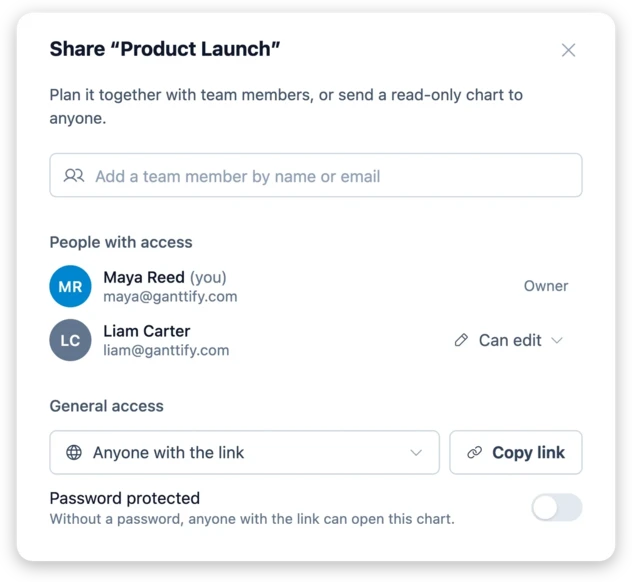
Your manager wants to know where the project stands, every week, without pinging you for it. Add them to the chart as a team member and they start out Read-only : they open it whenever they like and see the plan as it is right now, without being able to change anything.
A colleague on the project is different. When their task slips by two days, the quickest fix is for them to drag it, not to message you and wait. Switch them to Can edit and their changes go straight into the integration your chart comes from, under their own name, as if they had made them there. That's also why there's one condition: they need access to the chart's projects in your integration first. Share those projects with them there, give it a few minutes, and Can edit becomes available in Ganttify. If their access ever goes away, the chart falls back to Read-only for them until it's restored. The team sharing article walks through it step by step.
Either way, the chart shows up on their My Charts page, in a new Shared tab, with your name next to it. Once they're on your team, there's nothing else to set up in Ganttify.
Everyone else gets a link, and My Charts shows which charts are out there
Your client wants to see the schedule, not sign up for another tool. Set General access to Anyone with the link , click Copy link , and send it. They open the chart in their browser without an account, always see the current state of the plan, and can't change a thing. When the chart holds details that shouldn't travel beyond the people you sent it to, turn on Password protected and send the password separately. There's more on what a visitor sees in the read-only chart article.
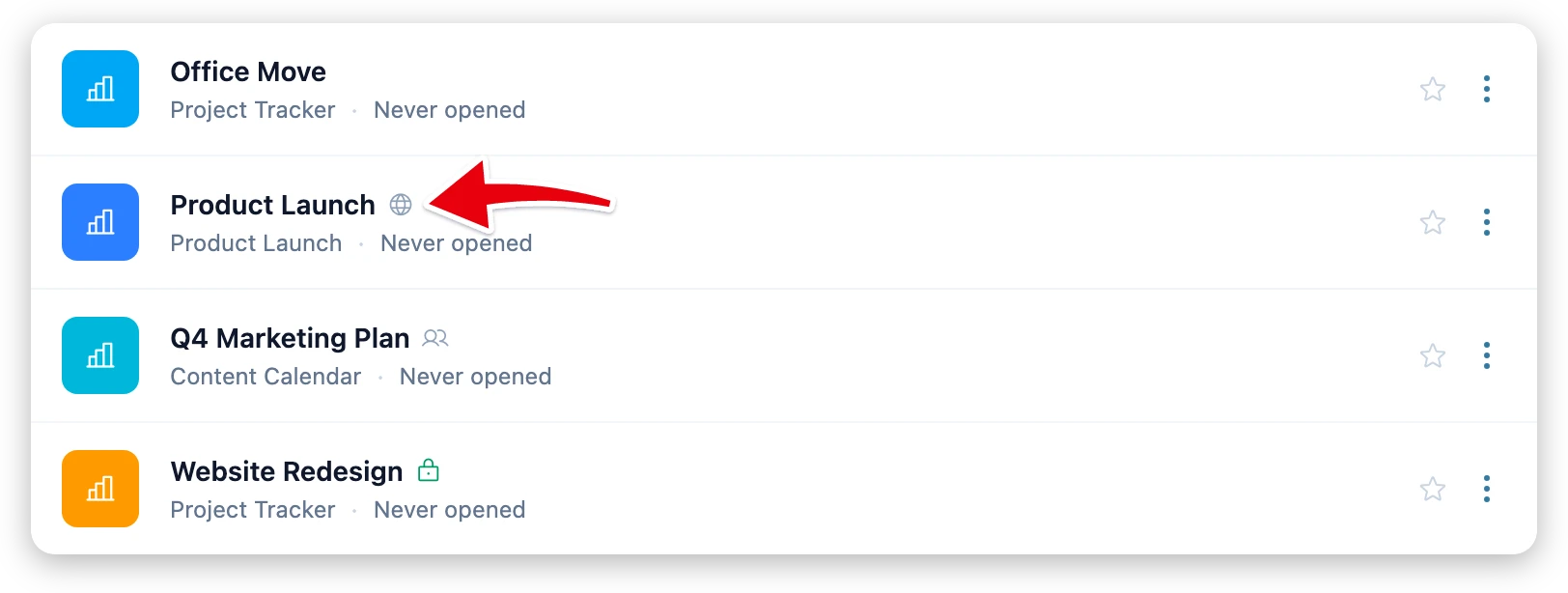
A few months of this and you'll have charts out with clients, charts shared with your team, and charts nobody but you has seen. The part we like most is that My Charts tells them apart for you: a globe after a chart's name means anyone with the link can open it, a lock means that link has a password, and a small people icon means it's shared only with team members. One glance tells you what's out in the world, without opening a single dialog.
Where to find it
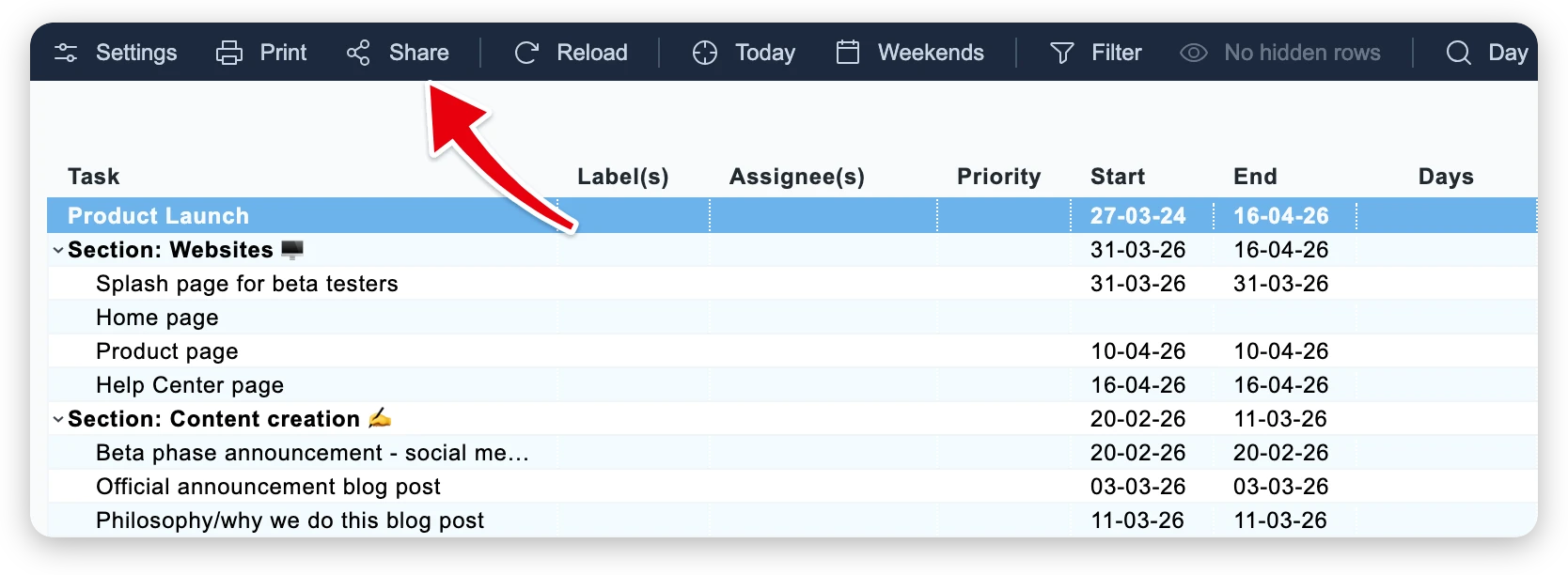
Share sits in the toolbar of every open chart and in the three-dot menu of every chart on My Charts .
The read-only link is included in every subscription. Sharing with team members comes with the Small Team and Large Team plans. Joining your team takes a single page: they pick a password, connect their integration, and they're in. Someone who already uses Ganttify logs in and joins straight away.
Open a chart and share it with the first person who needs it, or connect a project and start from there.