



Turn Google Calendar into a Gantt chart.
Your launch, renovation or client project already lives in Google Calendar. Ganttify puts all of it on one timeline, so you see whether you'll make the date, what else moves when something slips, and your client follows the plan without a login.
Show transcript Hide transcript
A timeline view of your whole Google Calendar, not just this week.
Day, week and month views answer what is happening now. Ganttify puts every event on one continuous axis, grouped by calendar, team or phase, so six weeks of work reads at a glance.
-
Group and color-code events.
- Add a group for each team or phase, give it a color, and the legend names your milestones.
-
Every calendar in one view.
- Work, client and team calendars arrive as collapsible groups on a single timeline, so you can see how they fit together without switching any of them off.
-
Filter what you look at.
- Filter by calendar, date range or keyword when the timeline spans months.
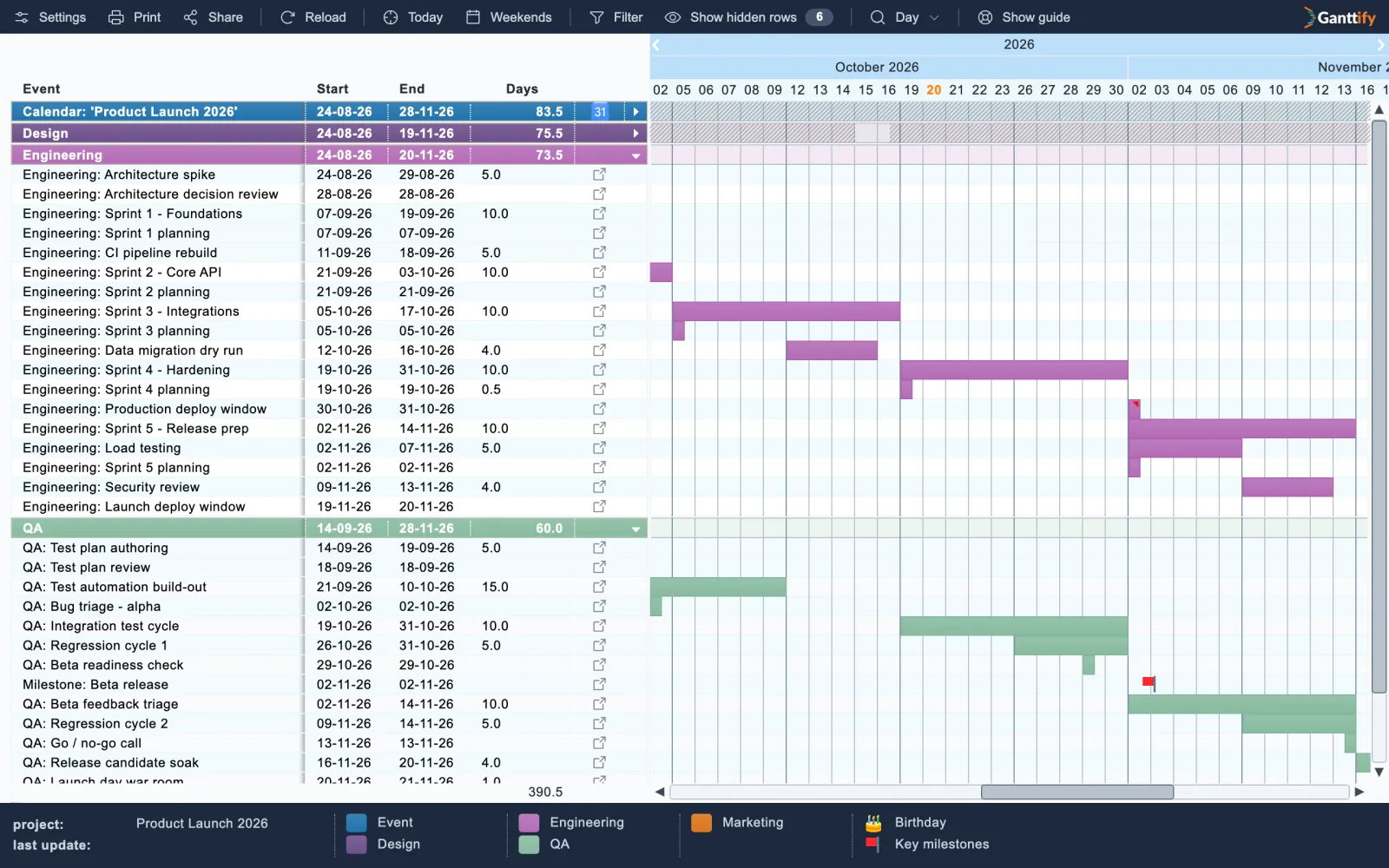
Define dependencies between events and let the deadline move with them.
Link the events that wait on each other. Drag the end of one sprint and testing moves along with it, so the new finish date arrives without you rebuilding the plan.
-
Across calendars.
- Connect events across different calendars. When a kickoff slips, you see every event it pushes back.
-
Impossible dates turn red.
- When a teammate moves an event in Google Calendar and a dependency no longer fits, the chart shows it in red after a reload, so you see the conflict before the client does.
Help center: How dependencies work in Ganttify
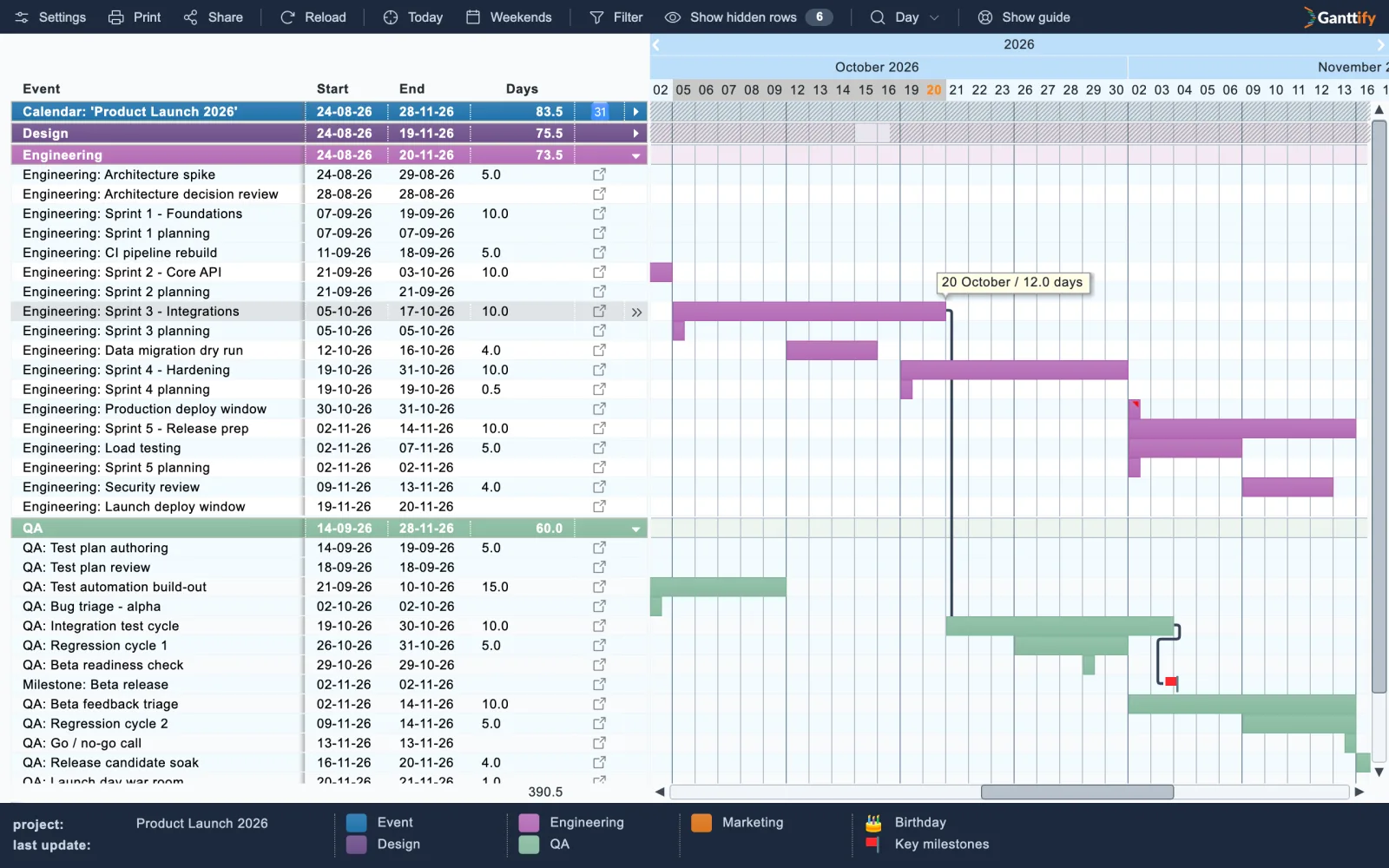
Two-way sync with Google Calendar: nothing to migrate, nothing to maintain.
Your events stay in Google Calendar and your team keeps using it. Drag an event on the chart and the new dates land in Google Calendar. Move something in Google Calendar, reload the chart, and it's there.
-
Edit details from the chart.
- Change a location or add invitees on the chart, and Google Calendar sends the invitations.
-
Your calendar stays the source of truth.
- Set dependencies between calendar events and reschedule them with drag and drop. Every change syncs back to Google Calendar, so your calendar stays the source of truth.
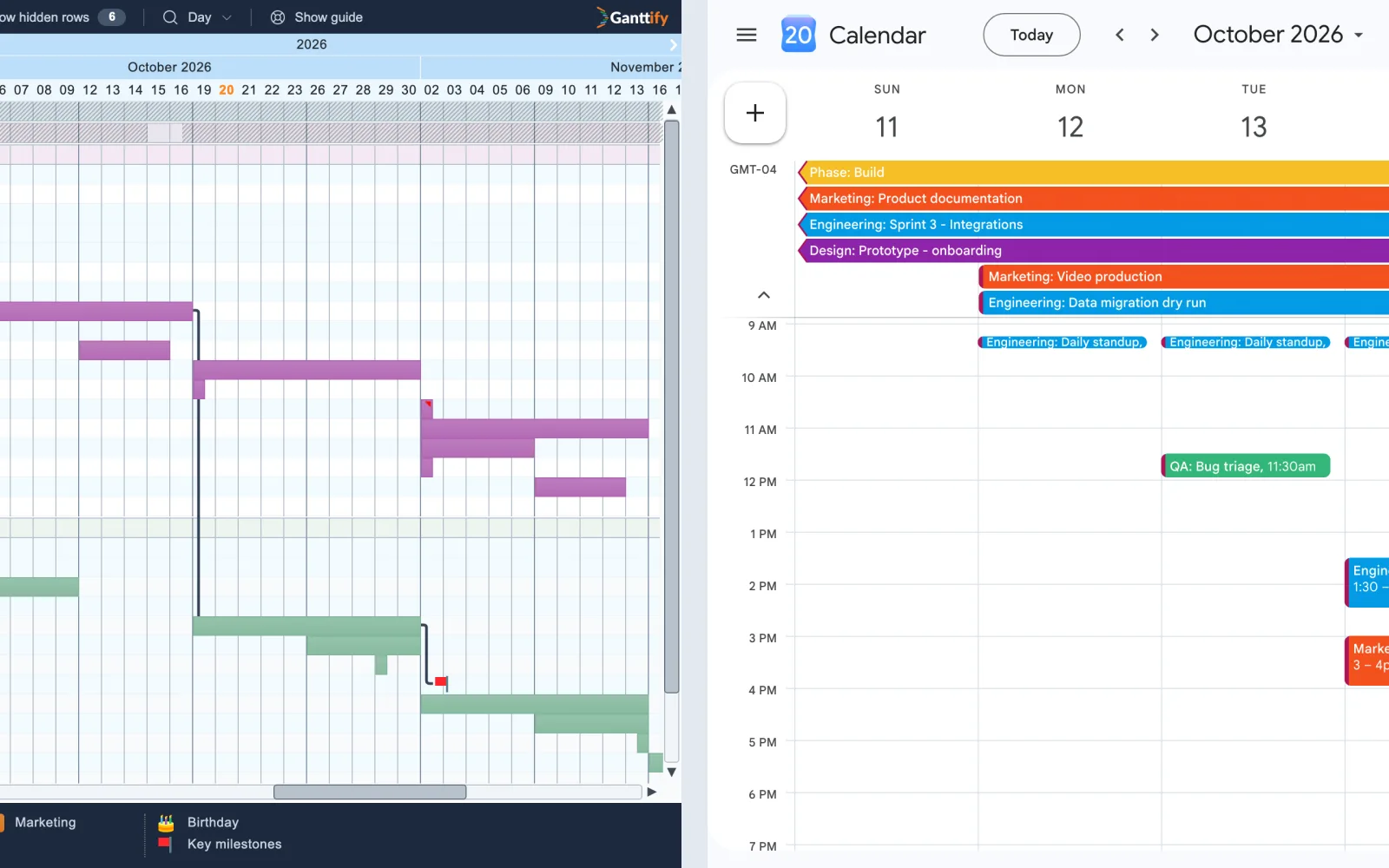
Nest sub-events under an event and plan the steps inside it.
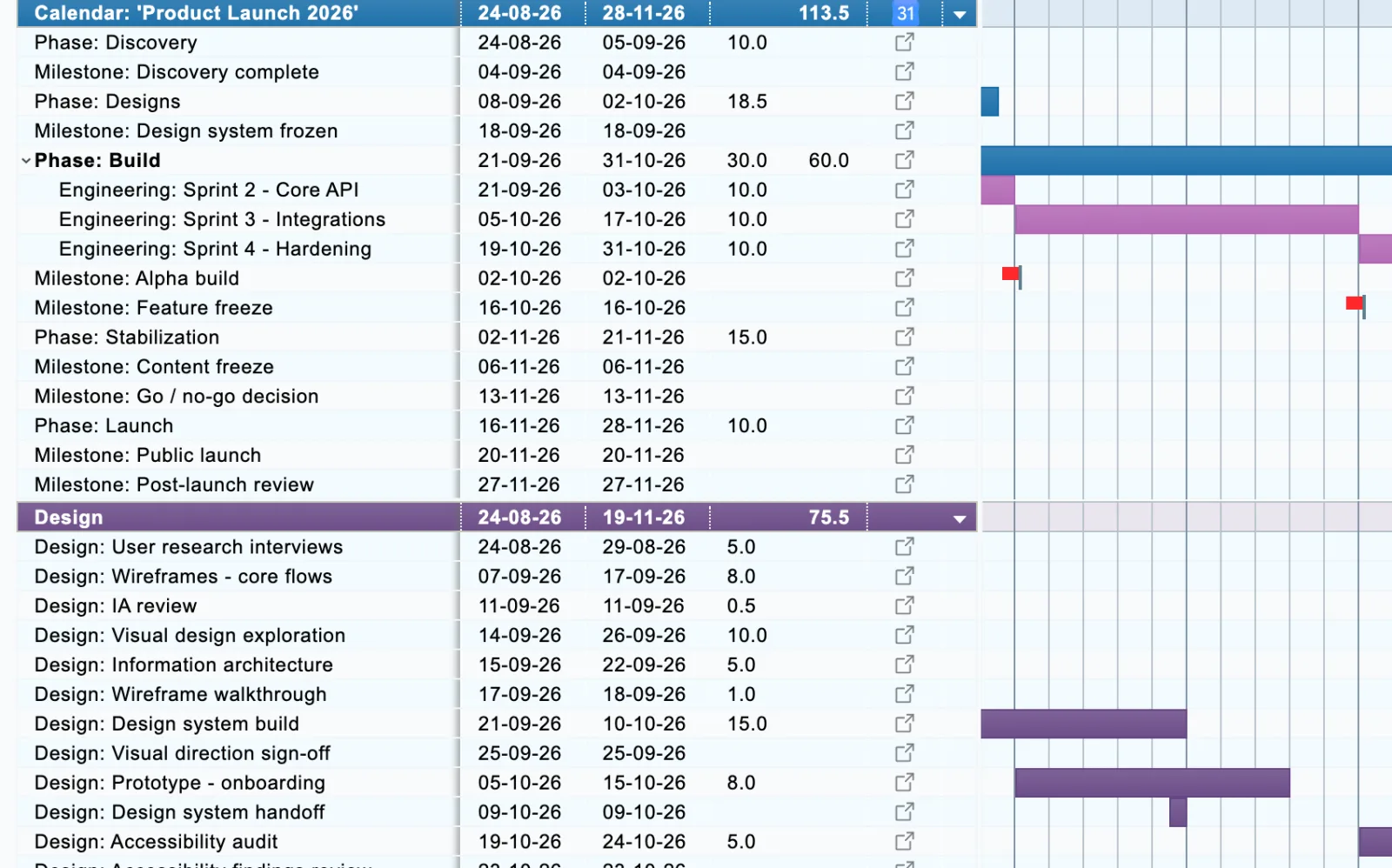
Google Calendar keeps events as one flat list. On the chart, right-click an event and choose "make sub-event" to place it under the event it belongs to, the way Sprint 2, 3 and 4 sit under "Phase: Build".
-
Sub-events stay with their parent.
- They sit indented under it, sort by date, and belong to the group their parent is in.
-
Works on calendars you can only read.
- The hierarchy lives in Ganttify, so nothing changes in Google Calendar and a shared calendar you cannot edit nests just the same.
Share your calendar as a Gantt chart
Share a read-only Gantt chart with clients and stakeholders.
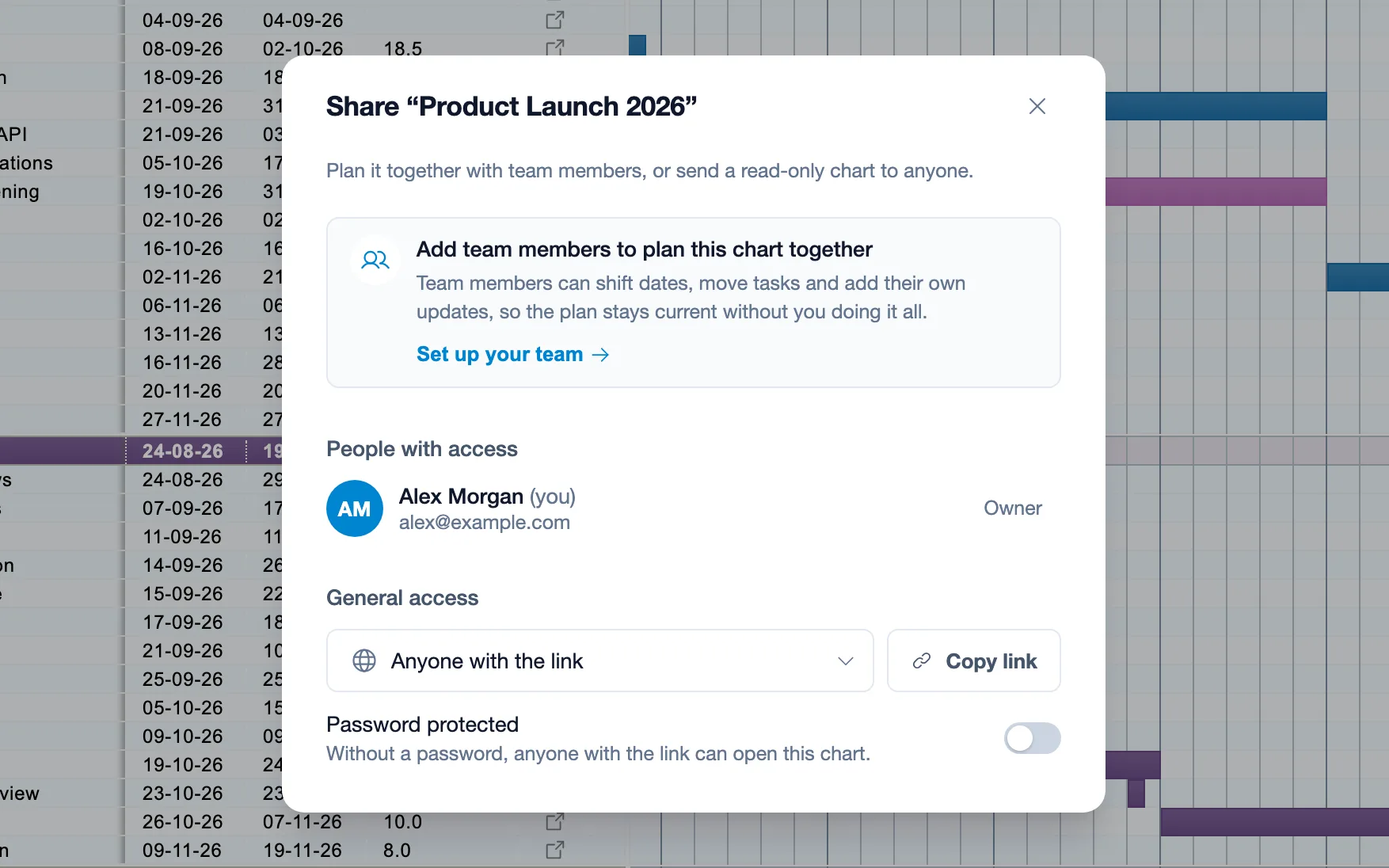
Share a read-only link with clients and stakeholders. They see your project schedule as it changes, no Google account needed.
-
No account, no subscription on their side.
- Set the chart to "Anyone with the link" and send the link. The people you share it with need no Google account, no Ganttify account and no subscription.
-
Password when it matters.
- Turn on password protection for a plan that is not for everyone, and share the password separately.
Export your Gantt chart as a PDF or image for the status report.
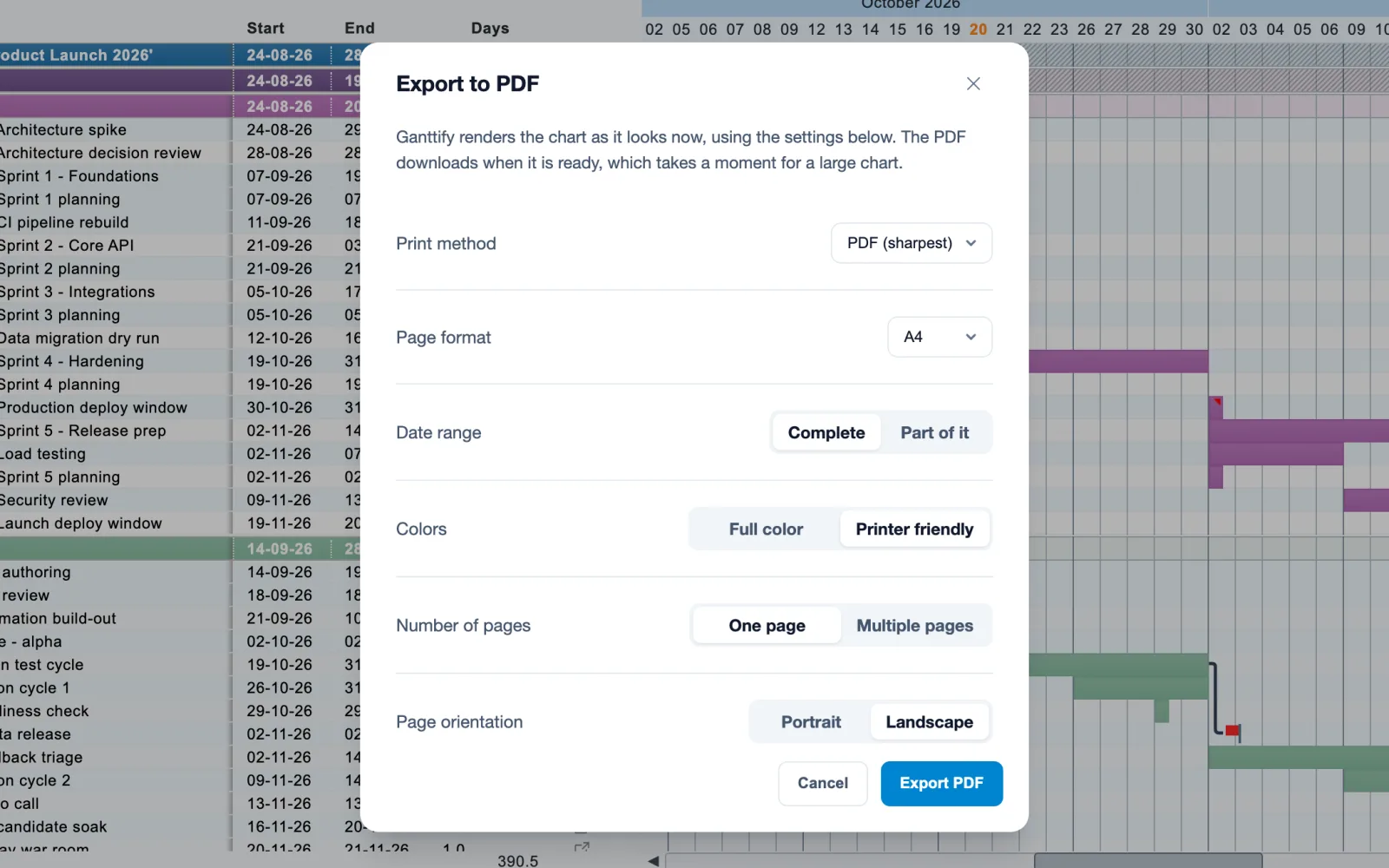
Export the timeline as a PDF or an image and drop it into a status email, a slide or a print-out.
-
Sharpest PDF or an image file.
- Open Print in the chart's toolbar, choose a PDF or an image file, and pick the page format and orientation.
-
One page or many.
- Fit the whole timeline on one page for a slide, or spread it over several for a print-out, in full color or printer friendly.
Help center: How to export a chart as a PDF or image
Who plans with Ganttify and Google Calendar?
-
Freelancers and consultants
- Four client projects in one calendar become one timeline. See where you still have room for new work, and give each client a read-only link to their own plan.
-
Teams running a launch, campaign or event
- Design, engineering and marketing keep their own calendars. The lead sees how they wait on each other, and when one sprint slips, the release date moves with it.
-
Renovations, weddings and moves
- Wedding planning, home renovation, travel itinerary: any multi-week project that lives in Google Calendar reads better on a timeline, and the people involved follow it through a link.
How Ganttify works with Google Calendar
-
Connect
- Connect your Google account and pick the calendars to plan with.
-
Visualize
- Your events appear as bars on a timeline, one group per calendar.
-
Plan
- Group, link and drag. Every change syncs back to Google Calendar.
Frequently asked questions about Ganttify and Google Calendar
Everything you need to know about using Ganttify as a Gantt chart add-on for Google Calendar. Can't find what you're looking for? Check out our help center.
- Does Google Calendar have a Gantt chart view?
- No. Google Calendar has day, week, month, and schedule views, but not one that shows events as bars on a timeline. Ganttify adds that view on top of the calendar you already keep. Connect your account and your events appear on an interactive Gantt chart right away.
- How does Ganttify turn Google Calendar into a Gantt chart?
- Connect your Google Calendar account and pick the calendars you want to include. Ganttify pulls in your events and shows them as color-coded bars on a timeline. Drag to reschedule, link dependent events, or share your plan. Every change syncs back to Google Calendar automatically.
- Do I need to move my events out of Google Calendar?
- No. Ganttify sits on top of your existing calendar. Nothing to migrate, no events to duplicate, no new tool to learn. Your events stay in Google Calendar and Ganttify gives you a better way to see and plan them.
- Can I link events that depend on each other?
- Yes. You can create dependencies between events, even across different calendars. When a kickoff meeting slips by a week, you will see exactly which downstream events are affected.
- Can I see multiple Google Calendars on one Gantt chart?
- Yes. Ganttify pulls events from the calendars you choose into a single timeline. Work, personal, team, shared calendars: they all show up together so you can spot conflicts and see how everything fits.
- Can I share a Google Calendar Gantt chart with people who don't use Google?
- Yes. Share a read-only link to your Gantt chart. Anyone with the link sees your timeline without a Google or Ganttify account, and it updates as your events change in Google Calendar.
- Can I nest events under another event?
- Yes. Right-click an event on the chart and choose "make sub-event" to place it under another event. Sub-events sit indented under their parent and sort by date. The hierarchy is stored in Ganttify, so nothing changes in Google Calendar and it works for calendars you can only read.
- Can I export a Google Calendar Gantt chart as a PDF?
- Yes. Export the chart as a PDF or an image for a status email, a slide or a print-out. See Export your Gantt chart as PDF or image.
- Do my clients need a Ganttify subscription to view the chart?
- No. Anyone with the link opens the read-only chart without a Google account, a Ganttify account or a subscription. Only the people who edit the chart need a Ganttify account.
Everything you need
Also on every Google Calendar chart
-
Smart filters
- Filter by calendar, date range, or keyword. Focus on what matters when you're looking at weeks of events.
-
Team scheduling
- Combine multiple team members' calendars into one timeline. See who's available, who's overbooked, and where schedules overlap.
-
Personal planning
- Plan your week across work and personal calendars. See how gym sessions, meetings, and deadlines fit together on one timeline.
-
Privacy first
- Your calendar data is loaded on-demand and never stored on our servers. We only read what's needed to render your timeline.
Ready to turn Google Calendar into a Gantt chart?
Start your free 14-day trial today.